How to use Tidily
Get your home organized in a few minutes. Follow these steps with screenshots from the app.

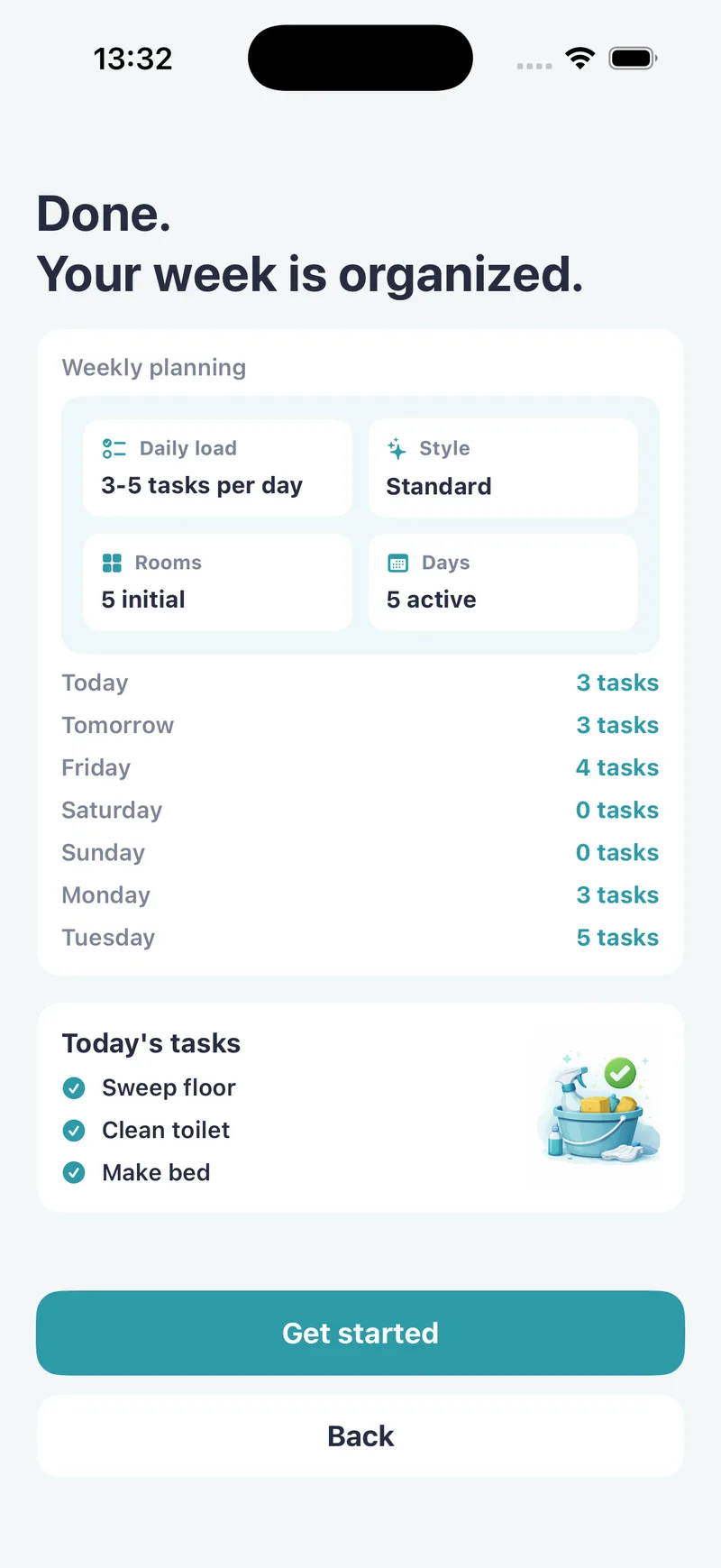
Step 1: Start with an initial plan
When you first open the app, choose your rooms, your cleaning style (light, standard or deep), the days that suit you and how many tasks you want each day. Tidily uses these choices to create an initial set of rooms and tasks.
This is just a starting point: you can change everything later in the My Home tab.
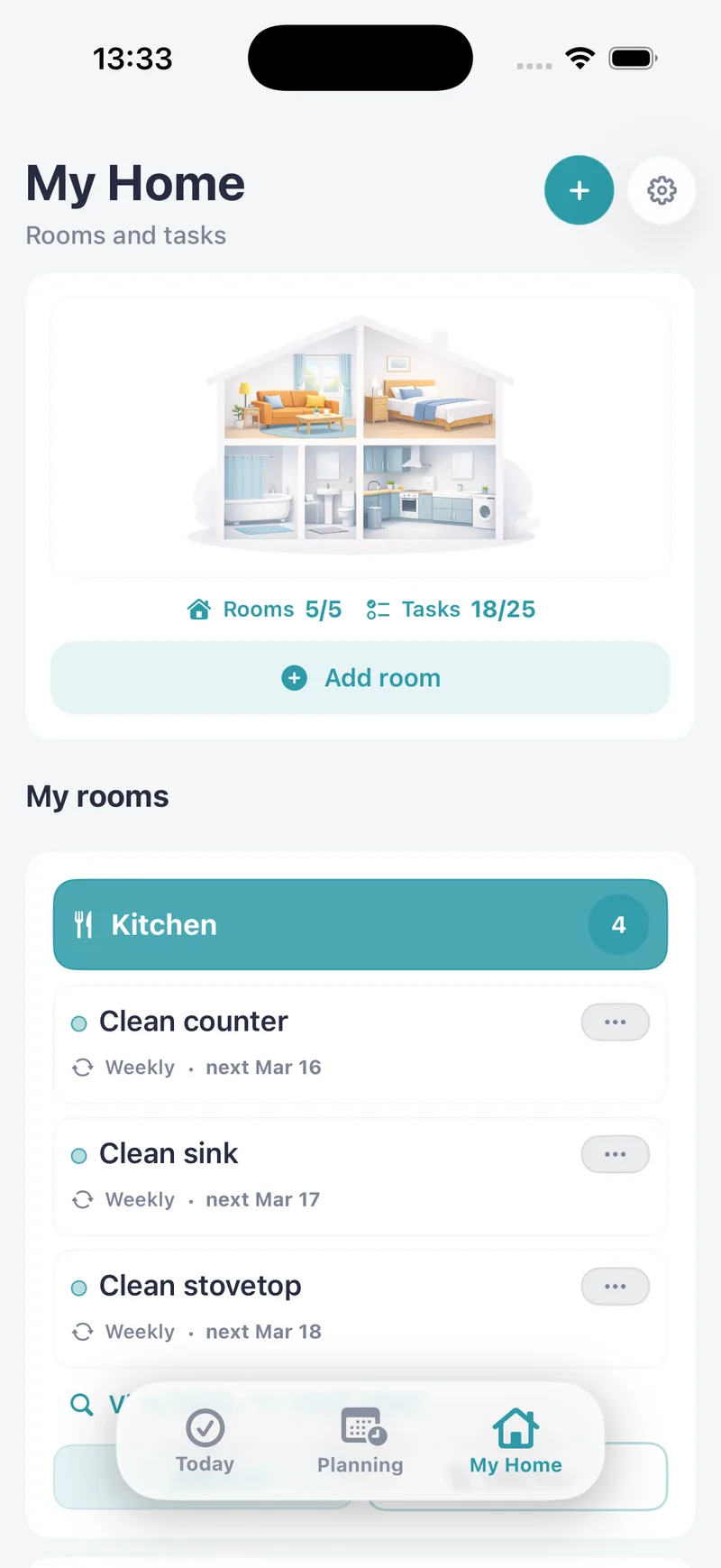
Step 2: Add your rooms and tasks
In My Home, tap Add room and choose a name and icon. To create a task, use the + button at the top or Add task inside a room. Enter its name, whether it is one-off or recurring, its frequency and date.
To edit or delete a task, use the three dots beside it. To edit or delete a room, tap Edit room on its card.
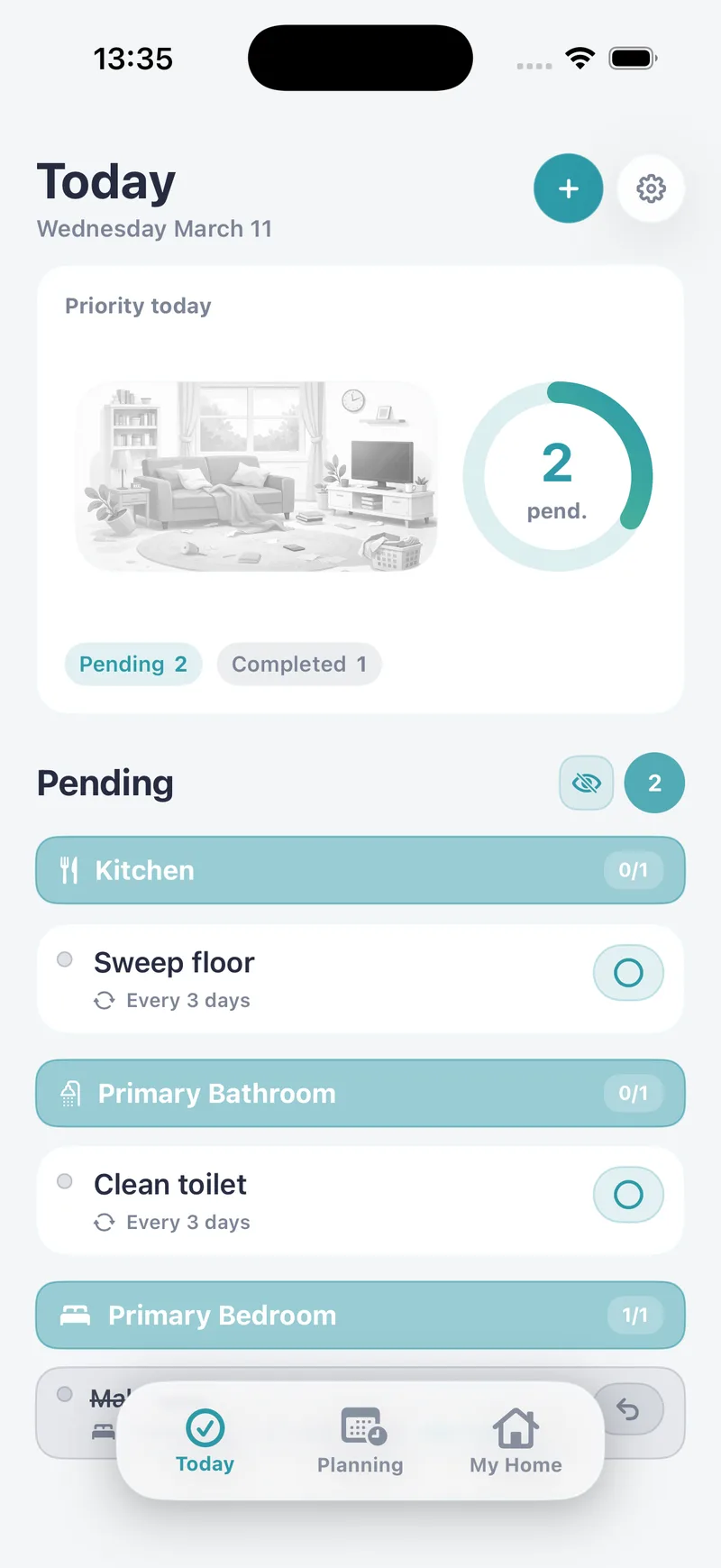
Step 3: See what is due today
The Today tab brings together pending and overdue tasks, grouped by room, so you do not need to check the whole house.
Tap the circle beside a task to mark it as done. If you make a mistake, you can undo it from the completed list.
Step 4: Skip or reschedule a task
If a task does not fit today, swipe it to skip it or reschedule it for another day. Use the eye button to show or hide tasks you have already completed.
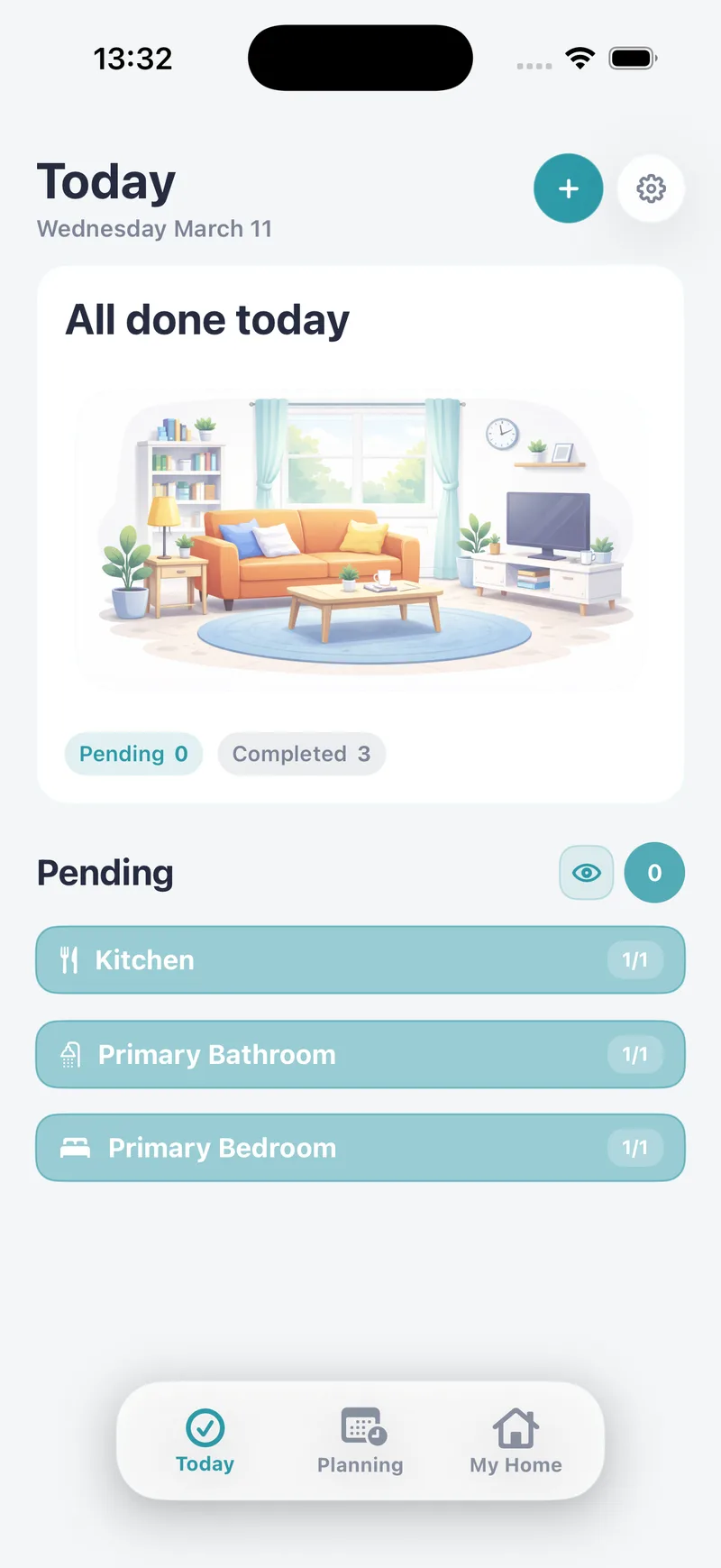
Step 5: Overdue tasks do not pile up
If a recurring task goes unfinished for several days, you will see one pending task, not one for every missed day. Its date shows the first day it was missed.
When you complete it, the app treats you as caught up and the task returns on its next regular date.
Step 6: Plan your week
In the Planning tab, you can see your week and drag a task from one day to another when plans change. If the same task is already pending on that day, the app prevents the move to avoid a duplicate. Planner is a Tidily Pro feature.
Step 7: Turn on reminders
Open Settings using the gear at the top, then go to Notifications. Enable reminders, choose a time and select the days you want to receive them. You can adjust these settings whenever your routine changes.
Frequently asked questions
How do I add a new room?
Go to My Home and tap Add room. Choose a name and icon, save, and it will appear in your list.
How do I delete a task?
In My Home, open the three-dot menu for that task inside the room card and tap Delete.
How do I delete a room?
In My Home, tap Edit room on its card and use the delete button.
What happens if I skip a task?
It is recorded as skipped for that day. If you did this by mistake, you can undo it from the completed list in Today.
Why do I only see one pending task after missing several days?
The app groups overdue occurrences so the list stays manageable. You see one pending task dated to the first missed day. Completing it returns the task to its normal schedule.

Find out what to clean today.
Download Tidily for free and add your home’s chores in a couple of minutes.